Apple Watch & Critical Alerts
OpsPing can reach an Apple Watch in two different ways: iOS may mirror an iPhone notification, and the native Watch companion can register its own APNs destination. Mirroring follows Apple's device-routing rules; companion delivery is a separate push. Know which path you are testing before changing notification settings.
- The mobile app installed and configured, per Mobile setup.
- An Apple Watch paired to the iPhone that receives your pages.
-
Understand the two delivery paths
- Mirrored iPhone notification. When the watch is worn and unlocked while the iPhone is locked, iOS may present the iPhone notification on the watch instead. The phone can stay silent. “Critical” controls silent-mode and Focus behavior, not Apple's mirroring choice.
- Native Watch companion. The companion registers a separate Watch APNs token through the authenticated iPhone app. OpsPing can then send the phone and watch their own payloads. The iPhone P1 requests the bundled critical sound; the Watch P1 uses the Watch's default sound and a time-sensitive interruption level.
- Device state and permissions still matter. Watch availability, notification permission, Critical Alerts permission on the phone, Focus, and token registration can change what you observe.
Turning off mirroring changes only the mirrored-notification path. It does not unregister a native Watch companion or guarantee that the watch receives nothing.
-
Control iPhone notification mirroring
If you rely on loud iPhone P1 audio and mirrored notifications are claiming the page, change the mirroring setting on your iPhone:
This does not disable OpsPing on Apple WatchTurn off only the iPhone mirror switch shown below. A registered OpsPing Watch companion has its own APNs destination, so independent Watch pages may still arrive. Use the P1 test afterward to verify both delivery paths.
- Open the Watch app on your iPhone (Apple's app, not OpsPing).
- Tap Notifications.
- Scroll down and toggle OpsPing OFF.
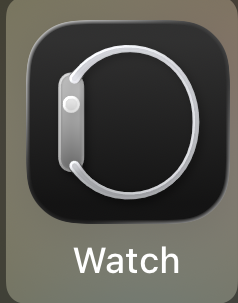
Step 1 — open Apple's Watch app on your iPhone. 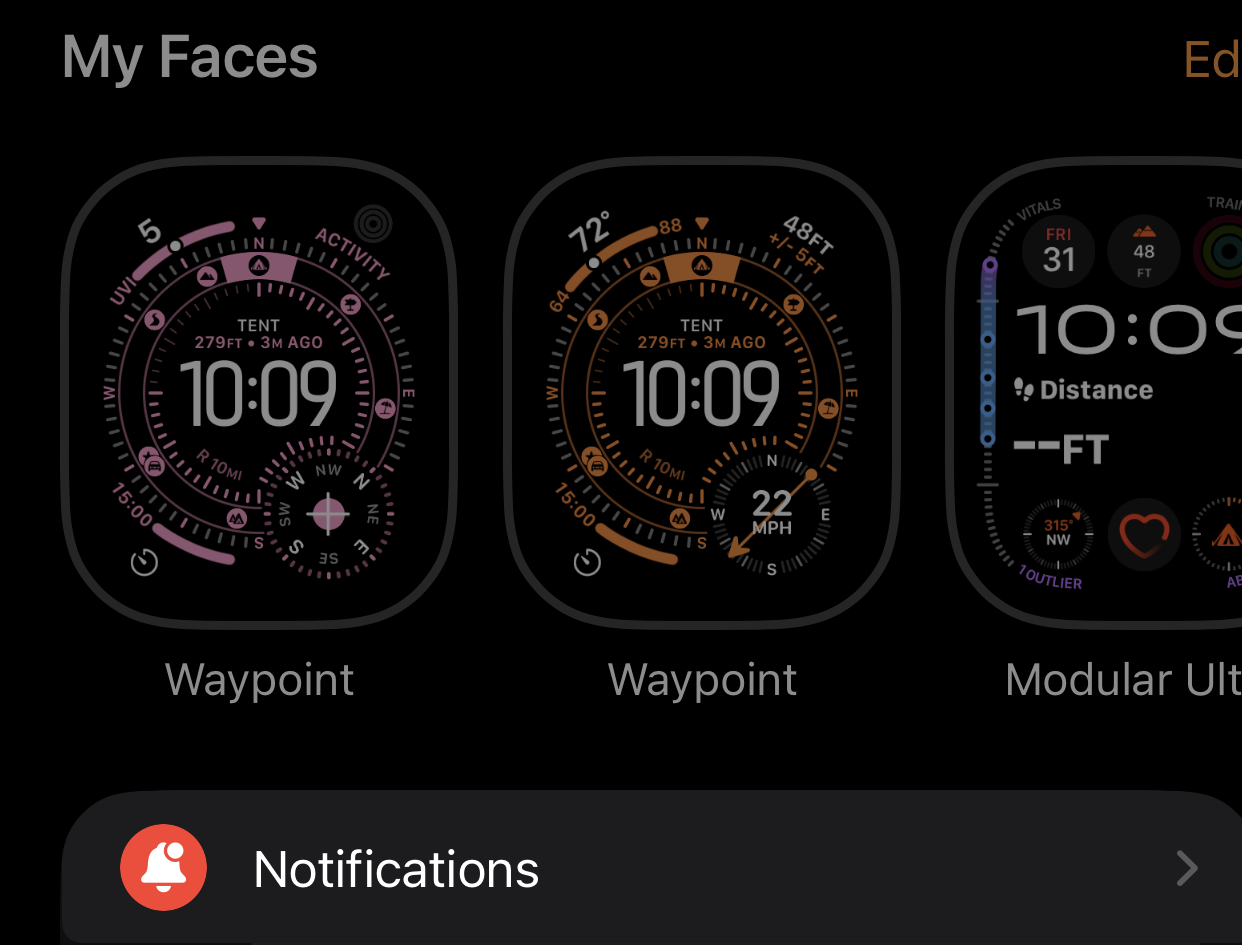
Step 2 — tap Notifications. In the Notifications list, find OpsPing under Mirror iPhone Alerts From and switch it off.

Step 3 — turn OpsPing off under Mirror iPhone Alerts From. With mirroring off, iPhone-targeted P1 notifications remain on the phone. When notifications and Critical Alerts are allowed, a delivered P1 requests the critical sound at full volume through silent mode and Focus. Lower priorities use their own sound and interruption settings.
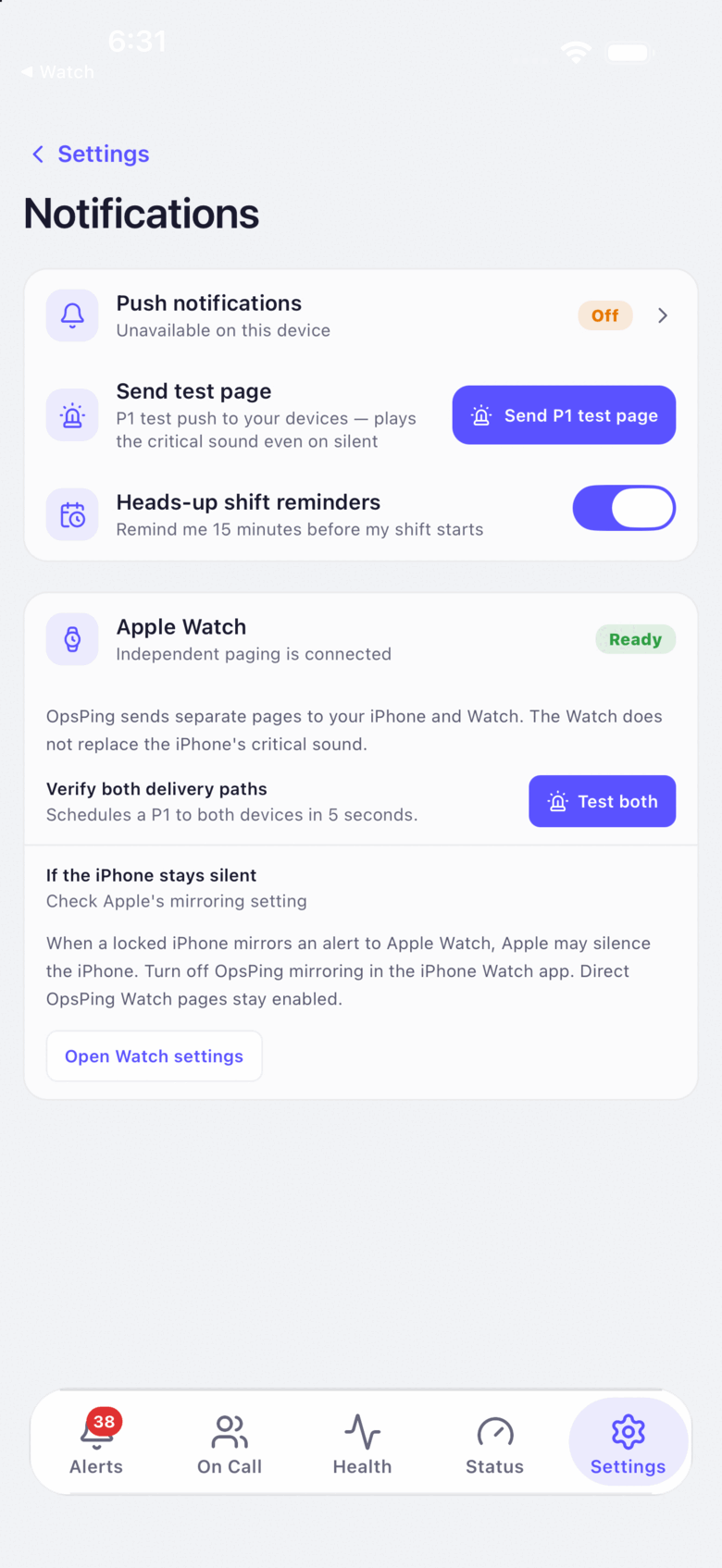
OpsPing's in-app reminder keeps the two paths explicit: independent Watch paging can remain ready while iPhone mirroring is off. Trade-offYou lose mirrored OpsPing banners on the watch. If the native companion is installed and registered, independent Watch pushes can still arrive. Verify both devices instead of assuming a phone-only or watch-only result.
-
Verify with a P1 test page
After changing the setting, test the complete path:
- Open the OpsPing app.
- Go to Settings → Notifications.
- Tap Send P1 test page, then lock the phone and keep the Watch worn and unlocked during the countdown.
The default test targets the caller's registered phone and Watch devices. Confirm the phone sound, the Watch presentation, and acknowledgement behavior you expect. A successful test proves current permission and token state; it is not a permanent delivery guarantee.
Test the state that actually failsThe mirroring failure only occurs when the iPhone is locked and the Watch is worn and unlocked when the alert fires — in that state iOS can hand the page to the Watch and play no sound on the phone. With the Watch off-wrist or locked the iPhone stays the alerting surface, so the phone rings and the test false-passes. Always test the locked-phone, worn-watch state before concluding P1 sound works. In the OpsPing app, Settings → Notifications → Apple Watch offers a dual-device test that pings the phone and Watch together.
TipIf the result is unexpected, check Settings → Delivery health, verify Critical Alerts permission, foreground both apps to refresh token registration, and repeat the test.
-
Know the safety net
Eligible unacknowledged P1 alerts that are not owned by an escalation policy re-page every 5 minutes by default, up to 12 repeat firings, until acknowledged, snoozed, or closed. Private deployments can change or disable those defaults; escalation-owned alerts use their policy's rules instead.
NoteIf you keep mirroring on and rely on your watch, consider adding a voice-call fallback for P1s — phone calls ring loudly on the watch in a way push notifications can't. See Notifications & channels.