FAQ
Quick answers to the questions that come up most. For step-by-step walkthroughs, start at Getting started; for every endpoint, see the API reference.
How do alerts get into OpsPing?
Create an integration, then POST to /v2/alerts with its OpsPing key or use the integration's inbound webhook. A 202 confirms ingestion. Configure a matching escalation policy or explicit schedule responder to page whoever is on call; ingestion by itself does not select a schedule.
We're moving from an end-of-life or legacy on-call tool. Do we have to rewrite our tooling?
OpsPing accepts the GenieKey authorization scheme, so the header syntax can stay. Point the tool at the OpsPing endpoint and replace its old service key with an OpsPing-generated integration key; follow the Migration guide for payload and routing differences.
What's the difference between a responder and a stakeholder?
Responders are paged — they go on schedules, receive alerts, and can acknowledge, escalate, and resolve. Stakeholders are a free, non-paging tier: they follow status from the mobile app's Status tab and receive announcements, but they're never paged and don't see the paging-specific settings. See Teams & administration for role assignment.
What is included in each OpsPing plan?
Free supports 5 responders, 1 team, 1 schedule, 1 single-level escalation policy, 3 integrations, 30-day alert history, and unlimited push. The three integrations can include the GenieKey-compatible alert API, Grafana, and Alertmanager. Paging is push-only: no SMS, voice, email or WhatsApp paging. It does not include SSO, status pages, postmortems, or heartbeats.
Team ($15/responder/month, or $12/responder/month billed annually) adds unlimited history, schedules, and multi-level escalation, plus heartbeats, status pages, postmortems, SSO, email and voice fallback (subject to channel availability), and the Opsgenie importer --apply run. The importer dry run stays free. Business ($25/responder/month, or $20/responder/month billed annually) adds self-serve up to 100 responders (more by quote), audit logs, custom RBAC, a custom SLA. Stakeholders are free on every plan.
What happens after the trial?
New tenants receive 14 days of full access and then a seven-day grace period. After grace, Free limits apply unless the tenant chooses a paid plan. Alert ingest and critical push paging continue.
How are notifications delivered, and what happens if I miss a page?
Escalation policies and per-user rules explicitly determine recipients, channels, and delays. Eligible P1 alerts not owned by an escalation policy repage every five minutes by default, up to 12 repeat firings; acknowledgement, snooze, or close stops the chain earlier. Private deployments can change or disable those defaults.
What are critical alerts, and why do they need a physical device?
With Notifications and Critical Alerts enabled, a delivered iPhone P1 can request sound through Silent mode and Focus. Delivery still depends on current permission, token, network, and device-routing state. Apple Watch users who need loud iPhone paging should verify mirroring settings and test the locked phone.
Why did my Apple Watch alert while my iPhone stayed silent?
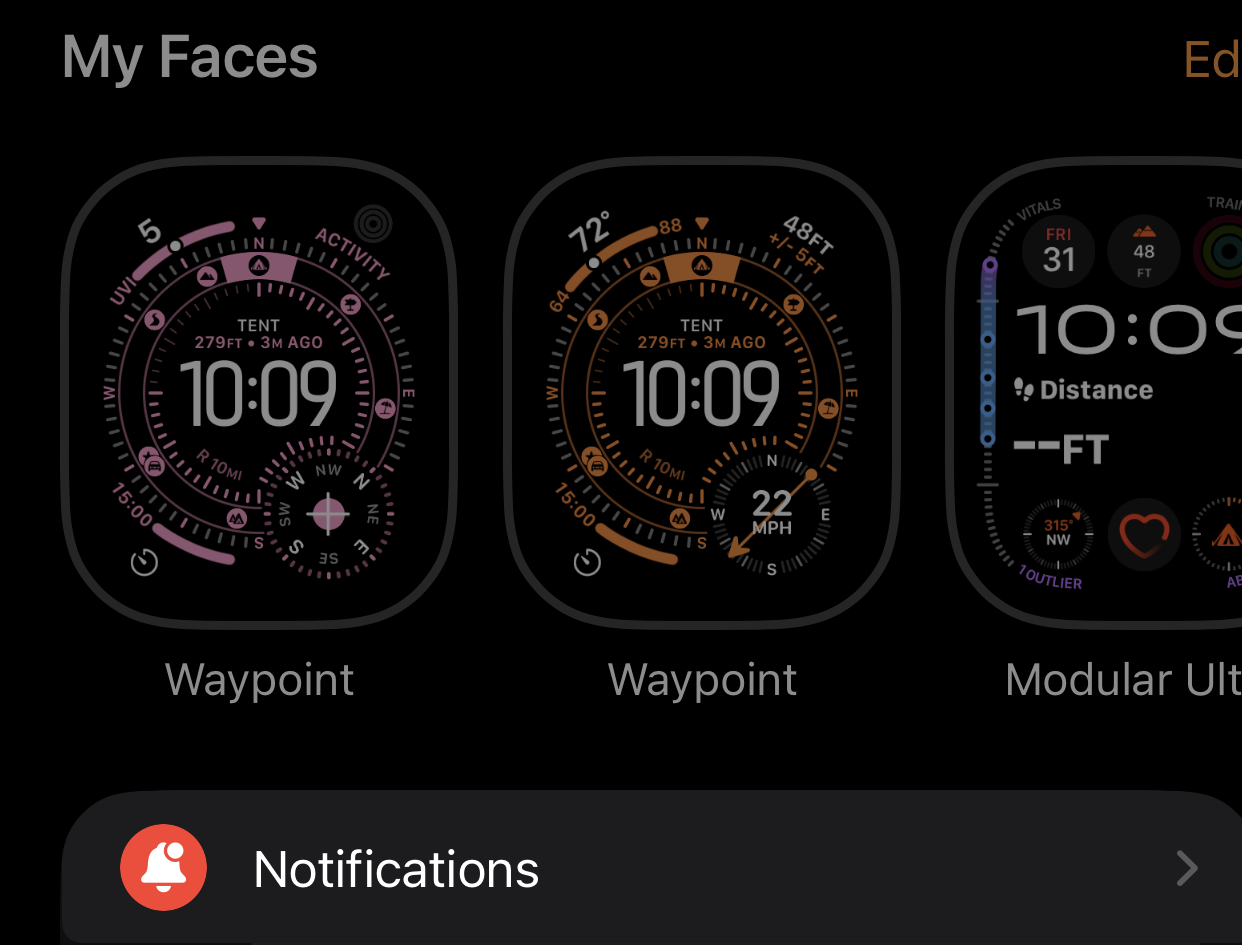
Apple may route a locked iPhone's mirrored notification to a worn, unlocked Watch and keep the phone silent. If loud iPhone P1 audio is the priority, open the iPhone Watch app, go to Notifications, find OpsPing under Mirror iPhone Alerts From, and turn it off. OpsPing's native Watch companion uses a separate delivery path, so disabling mirroring does not unregister independent Watch pages. Follow the illustrated Apple Watch & Critical Alerts guide, then send a test page with the iPhone locked.

On Android, can I swipe OpsPing away from Recents when I'm not using it?
No — leave the app in the background instead. Tapping Force stop (Android Settings → Apps → OpsPing → Force stop) reliably blocks push notifications — including P1 pages — until you manually open the app again; Android's stopped state holds all deliveries for the app. Swiping OpsPing away from Recents doesn't always reach that state on stock Android, but on many devices and OEM skins (aggressive battery managers) it can impair or stop delivery all the same. Either way, the safe habit is the same:
- Keep it backgrounded: pressing Home or switching apps is fine — backgrounded OpsPing keeps receiving push.
- Don't force-stop: neither swiping it out of Recents nor Force stop in system settings.
- If it was force-stopped: paging stays silent until you tap the OpsPing icon to relaunch it.
Details and where to check are in Mobile setup.
Where are timestamps shown, and what timezone is used?
OpsPing stores every timestamp in UTC and respects the schedule's timezone for rotation math; the console and mobile app render times in your local timezone. You don't need to configure a timezone for display.
How do I give OpsPing support temporary access, safely?
Invite a dedicated support user for the issue, then block or delete it. Review the audit entries attributed to that account, plus incident notes and change records, while recognizing that the audit log does not record every read or mutation. See Teams & administration.
Is each customer's data isolated?
Yes. OpsPing is multi-tenant with hard isolation between tenants — there is no admin bypass into another tenant's data. Users, teams, schedules, and alerts all scope to your tenant.