Keyboard shortcuts
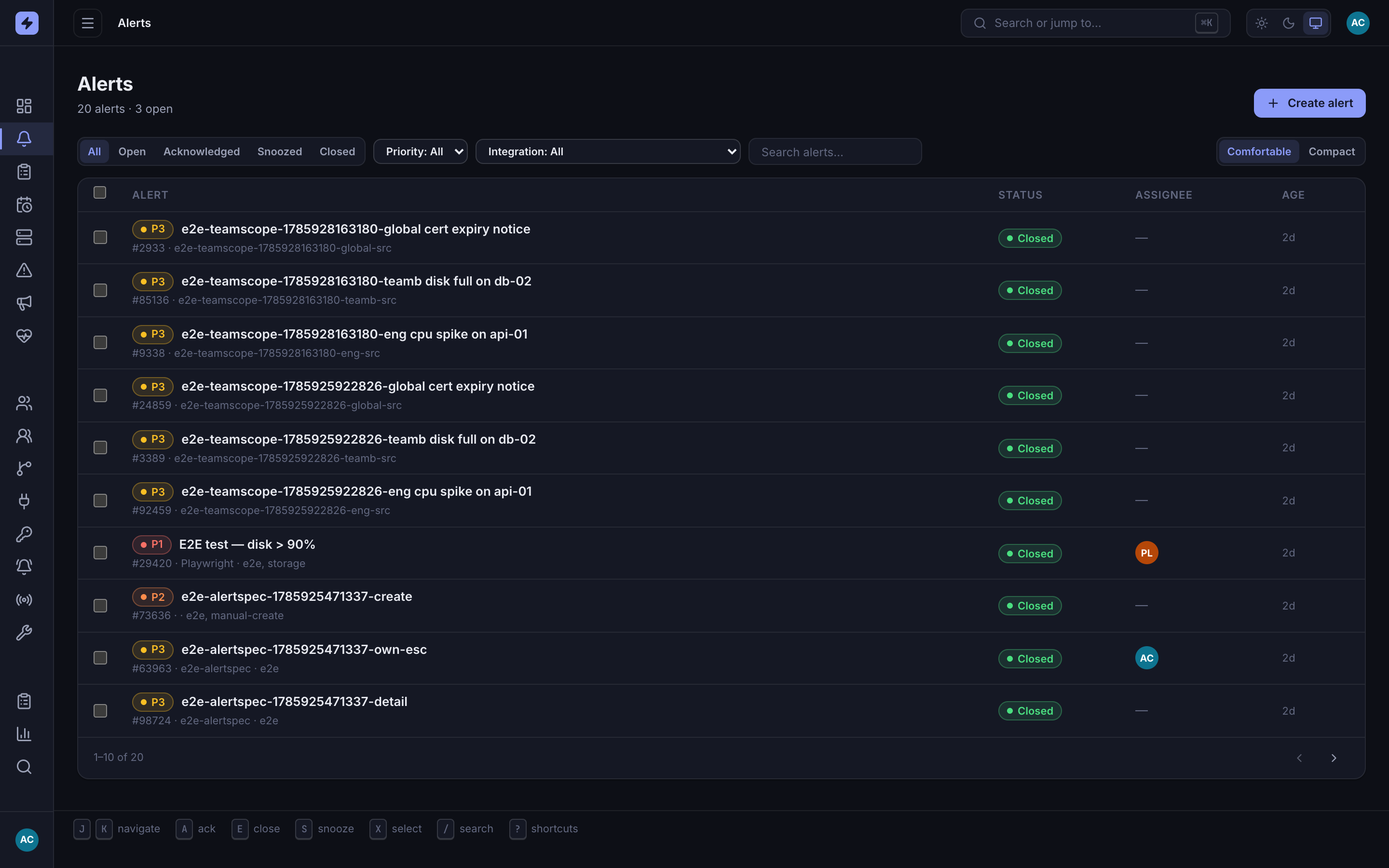
The admin console provides a command palette anywhere and focused-row shortcuts on alert pages. Single-key shortcuts are ignored while you type in an input, select, or editable field.
Anywhere
| Key | Action |
|---|---|
| ⌘K / Ctrl+K | Open the command palette — jump to a page or search alerts and users. |
| Esc | Close an open dialog, modal, or palette. |
Alert list
| Key | Action |
|---|---|
| J / K | Move focus down / up the alert list. |
| X | Select the focused alert (adds it to the bulk-selection bar for multi-ack/close/snooze). |
| A | Acknowledge the focused open alert. |
| S | Snooze the focused open alert for one hour. |
| E | Close the focused alert. |
| / | Focus alert search. |
| ? | Open the alert-list shortcut dialog. |
Alert detail
| Key | Action |
|---|---|
| A | Acknowledge the alert (when open). |
| S | Snooze the open alert for one hour. |
| E | Close the alert. |
| N | Focus the note field to add a timeline comment. |
Tip
The keybar is visible at desktop widths. On any width, shortcuts act on the focused alert only; use X plus the bulk action bar for selected alerts.